> ## Documentation Index
> Fetch the complete documentation index at: https://docs.qfex.com/llms.txt
> Use this file to discover all available pages before exploring further.
# API Keys
> Create and securely use account-scoped API keys with granular permissions.
API keys authenticate private account and trading requests. Each key has a public key and a secret key, an account scope, and a set of permissions.
## Create an API key
1. Sign in at [qfex.com](https://qfex.com) and select your profile in the bottom right corner.
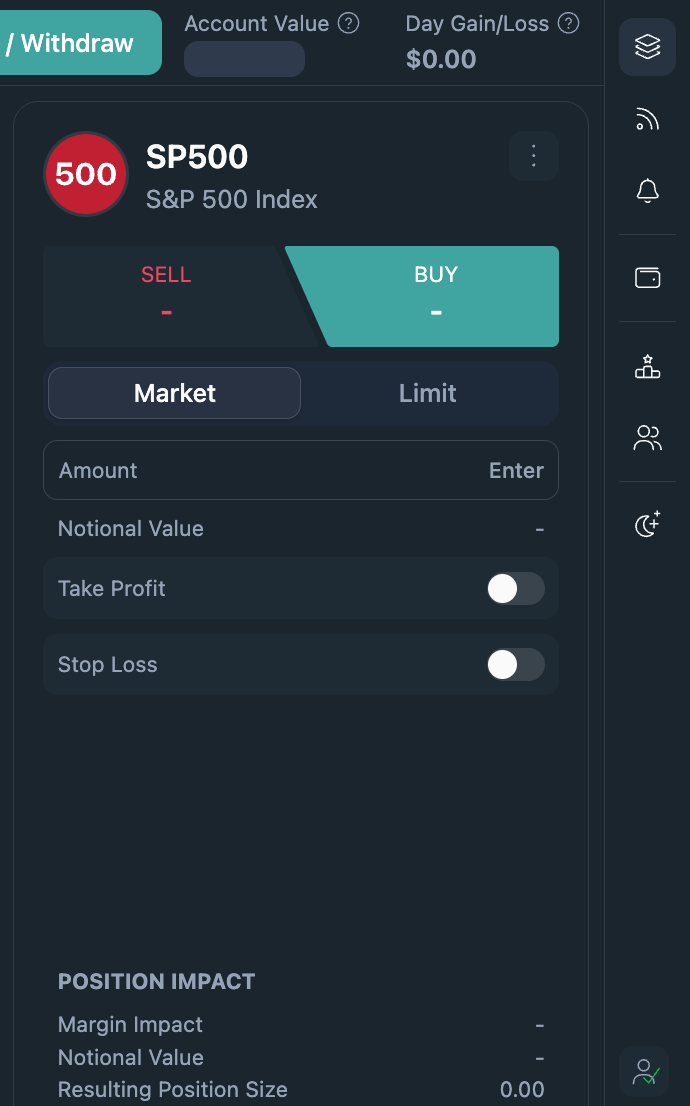 2. Navigate to **Developer Settings** via the carousel.
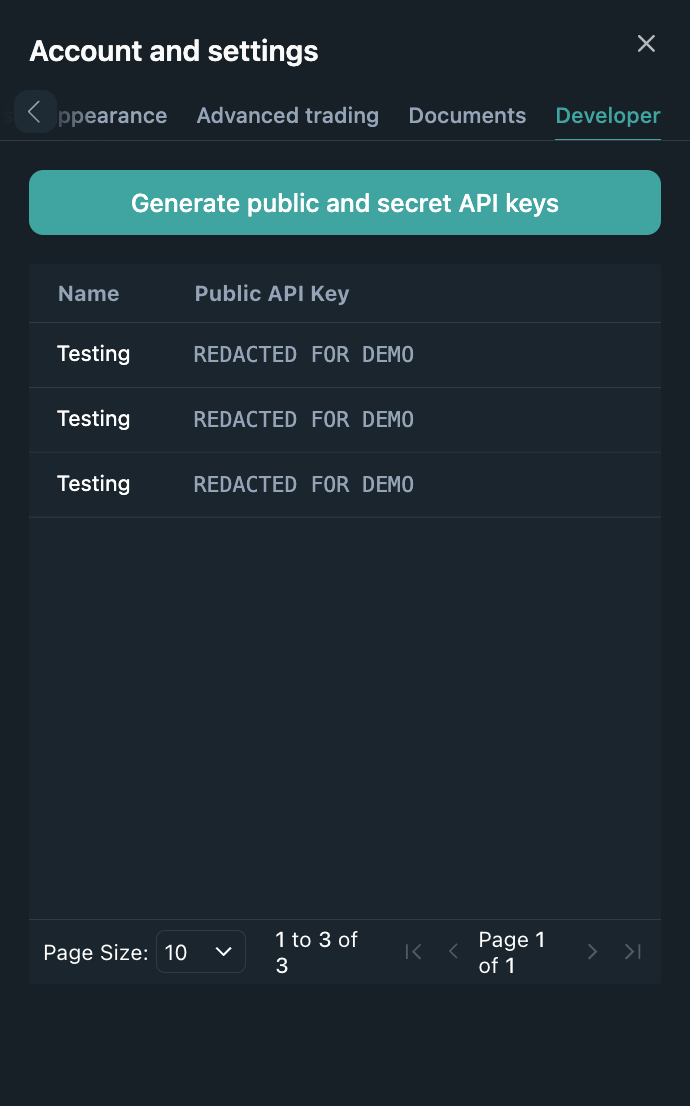
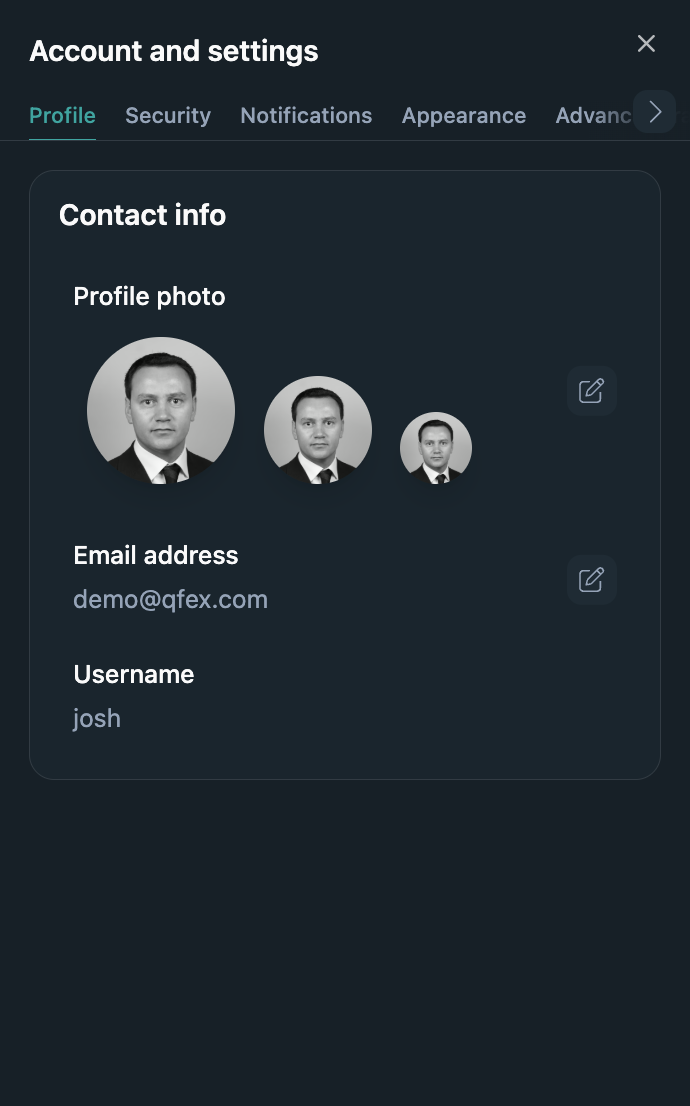 3. Click **Generate public and secret API Keys**.
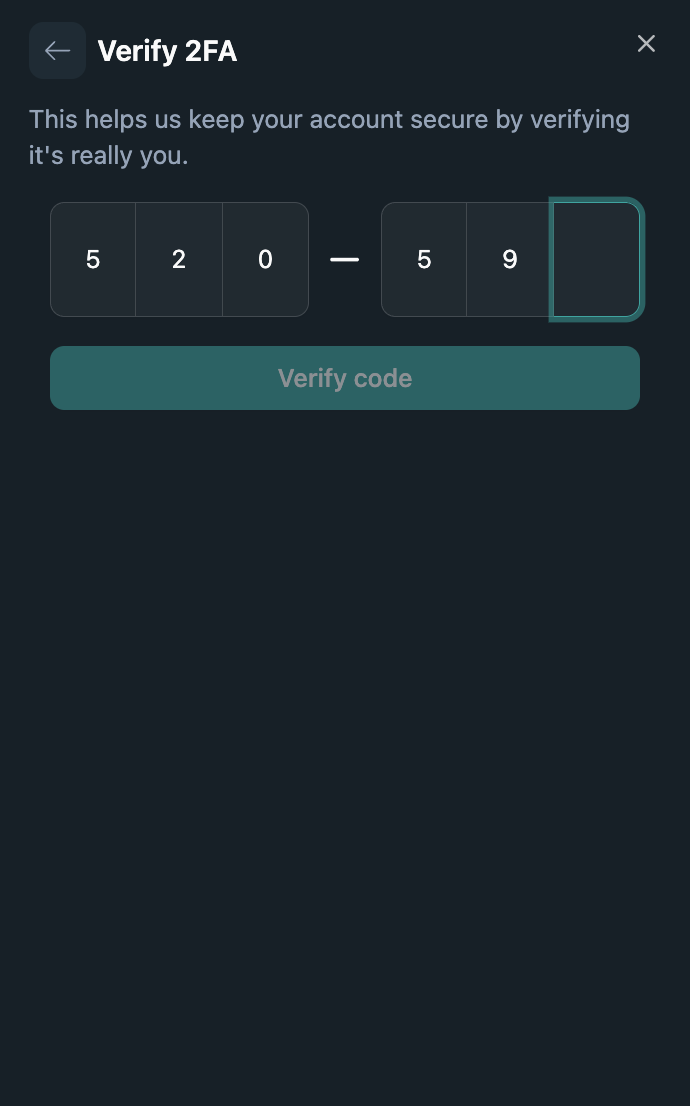
 4. Ensure you have 2FA enabled.
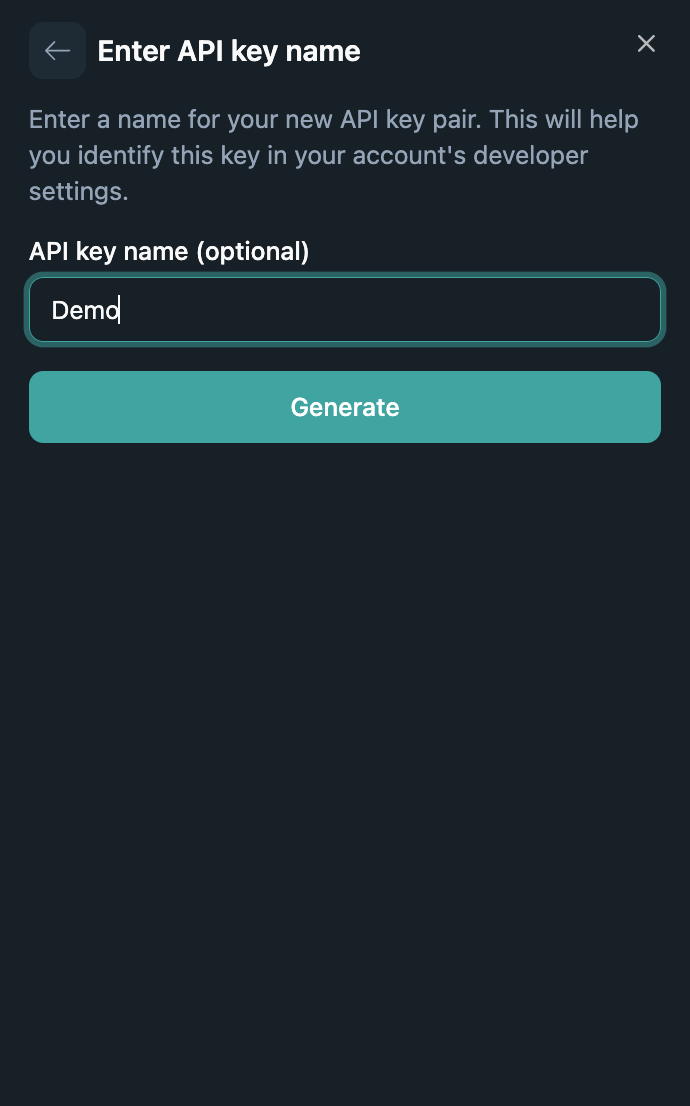
 5. Provide a descriptive name, choose the account access and permissions the key needs, and confirm.
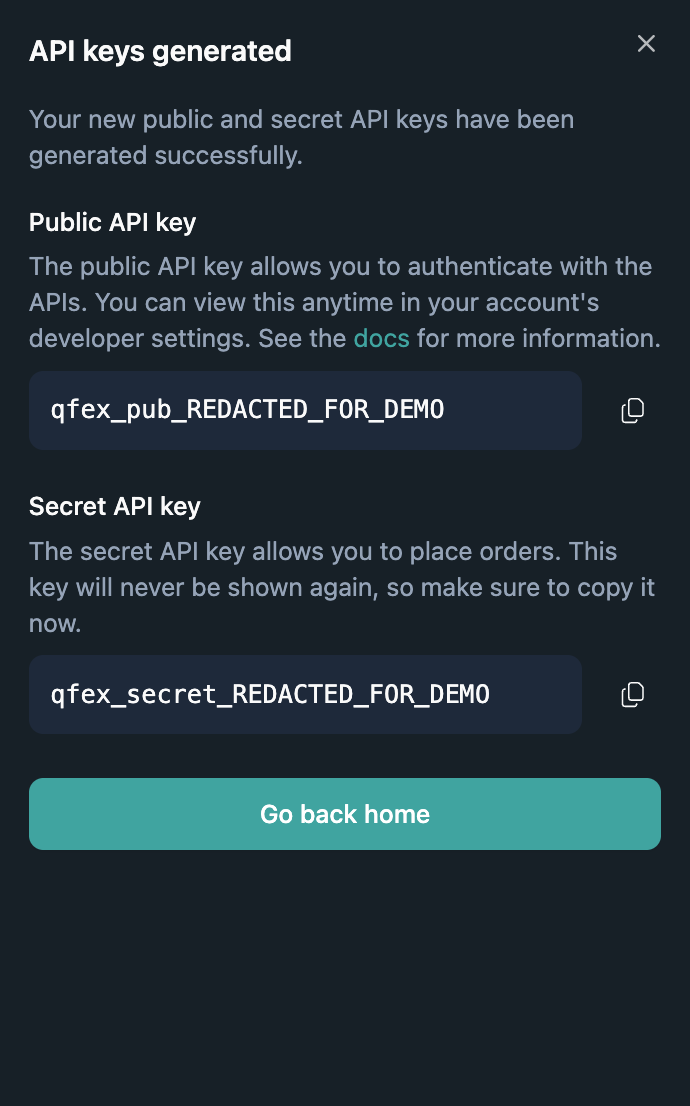
 6. **Copy** the generated key and store it securely—it will only be shown once.
 ## Account access and permissions
Each API key is limited by both its **account access** and its **permissions**. A request must satisfy both settings.
For account access, choose either:
* **A specific account**: The key can be used only with the selected primary account or subaccount.
* **All accounts**: The key can be used with any account you own. Use this only when the integration genuinely needs access across accounts.
Permissions control what the key can do:
| Permission | Allows |
| -------------------- | ------------------------------------------------------------------------------------------------------- |
| Execute orders | Place, modify, and cancel orders, and perform related trading actions. |
| View orders | Read orders, fills, and trading history. |
| View positions | Read open position information. |
| View balance | Read balances, equity, fees, and related account information. |
| Deposit and withdraw | Initiate supported funding and withdrawal actions. Available only to keys with **All accounts** access. |
Create keys with only the permissions required for their intended use. For example, reporting software may need view permissions but should not need order execution or withdrawal access.
## Use an API key with a third party
If you authorize a trusted third-party application to access QFEX with an API key:
1. Create a dedicated key for that application. Do not reuse your personal integration key.
2. Limit it to the required account and enable only the permissions the application needs.
3. Provide the public and secret key through a secure channel. The application never needs your QFEX password or MFA codes.
4. The application must keep the secret key on a secure server and use it to sign authenticated requests. It must never expose the secret in browser code, mobile applications, logs, URLs, or source control.
5. Revoke the key from Developer Settings when the integration is no longer needed or if either credential may have been exposed.
The secret key is displayed only once. QFEX cannot display it again after creation; create a replacement key if it is lost.
For direct integrations, see [WebSocket authentication](/websocket/channels/trade/authenticate) for the signing flow. If a third-party application supports [QFEX OAuth](/api-reference/builder-integration), use OAuth instead of sharing an API secret.
Treat the secret key like a password. Anyone who has both key values can act within the account access and permissions you selected.
## Account access and permissions
Each API key is limited by both its **account access** and its **permissions**. A request must satisfy both settings.
For account access, choose either:
* **A specific account**: The key can be used only with the selected primary account or subaccount.
* **All accounts**: The key can be used with any account you own. Use this only when the integration genuinely needs access across accounts.
Permissions control what the key can do:
| Permission | Allows |
| -------------------- | ------------------------------------------------------------------------------------------------------- |
| Execute orders | Place, modify, and cancel orders, and perform related trading actions. |
| View orders | Read orders, fills, and trading history. |
| View positions | Read open position information. |
| View balance | Read balances, equity, fees, and related account information. |
| Deposit and withdraw | Initiate supported funding and withdrawal actions. Available only to keys with **All accounts** access. |
Create keys with only the permissions required for their intended use. For example, reporting software may need view permissions but should not need order execution or withdrawal access.
## Use an API key with a third party
If you authorize a trusted third-party application to access QFEX with an API key:
1. Create a dedicated key for that application. Do not reuse your personal integration key.
2. Limit it to the required account and enable only the permissions the application needs.
3. Provide the public and secret key through a secure channel. The application never needs your QFEX password or MFA codes.
4. The application must keep the secret key on a secure server and use it to sign authenticated requests. It must never expose the secret in browser code, mobile applications, logs, URLs, or source control.
5. Revoke the key from Developer Settings when the integration is no longer needed or if either credential may have been exposed.
The secret key is displayed only once. QFEX cannot display it again after creation; create a replacement key if it is lost.
For direct integrations, see [WebSocket authentication](/websocket/channels/trade/authenticate) for the signing flow. If a third-party application supports [QFEX OAuth](/api-reference/builder-integration), use OAuth instead of sharing an API secret.
Treat the secret key like a password. Anyone who has both key values can act within the account access and permissions you selected.