

Create an API key
-
Sign in at qfex.com and select your profile in the bottom right corner.
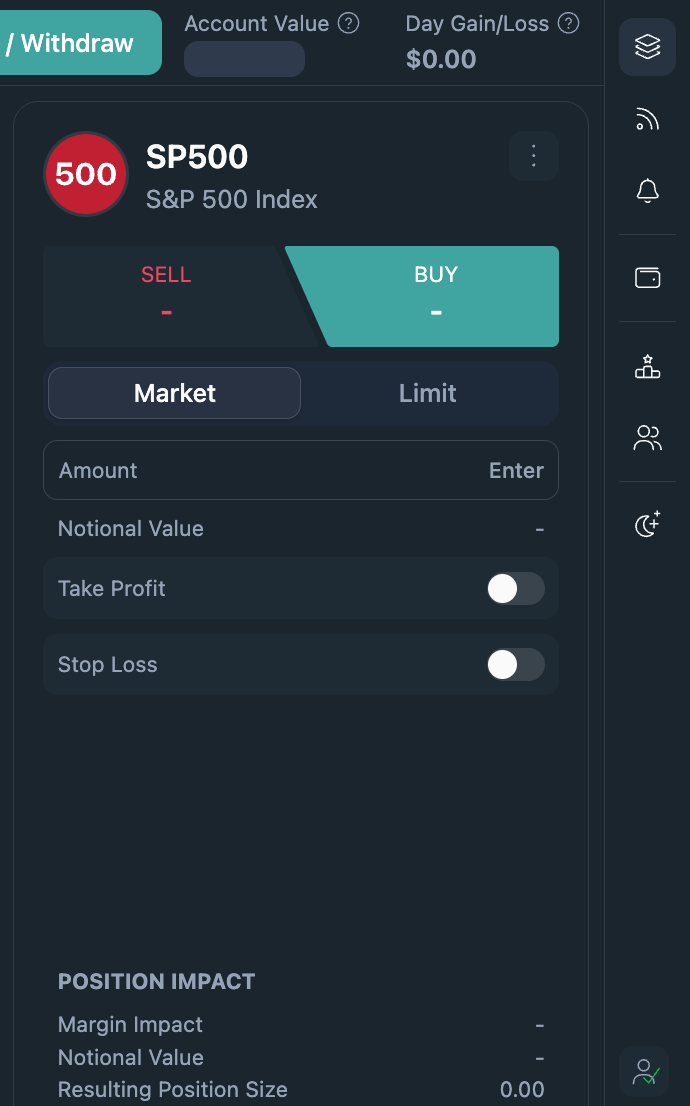
-
Navigate to Developer Settings via the carousel.
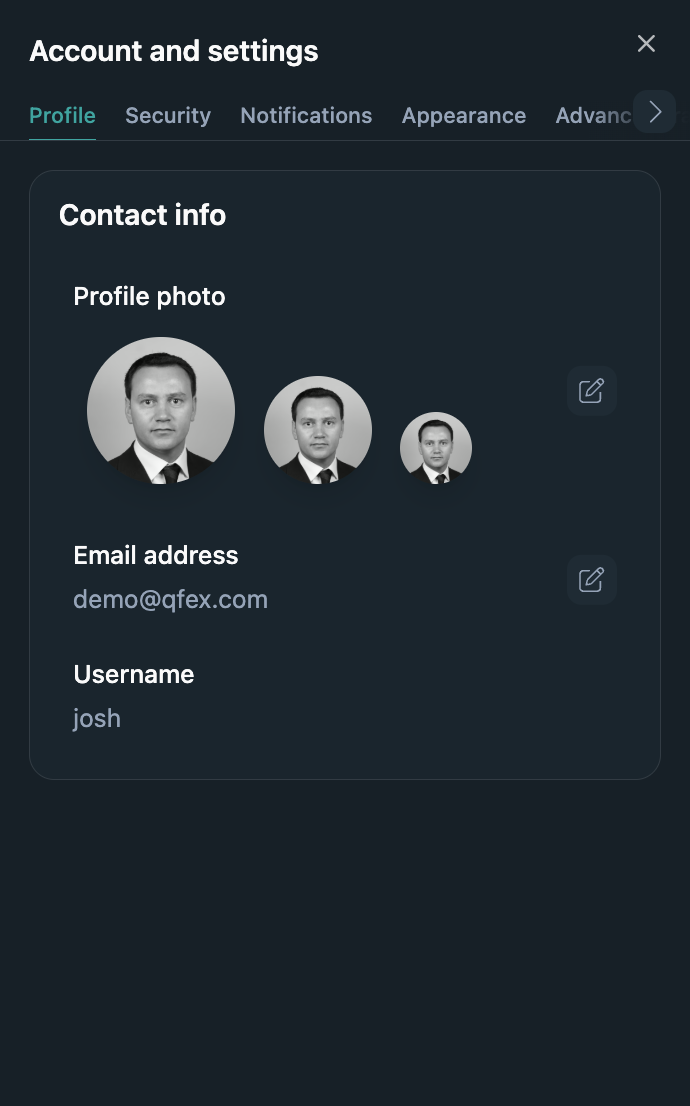
-
Click Generate public and secret API Keys.
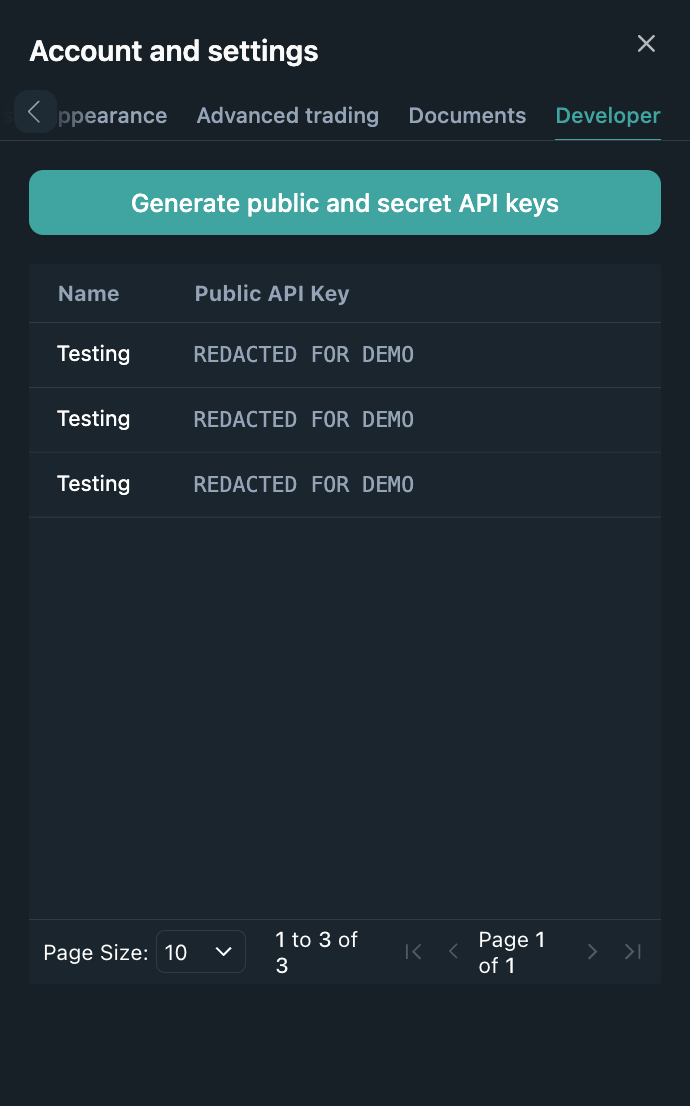
-
Ensure you have 2FA enabled.
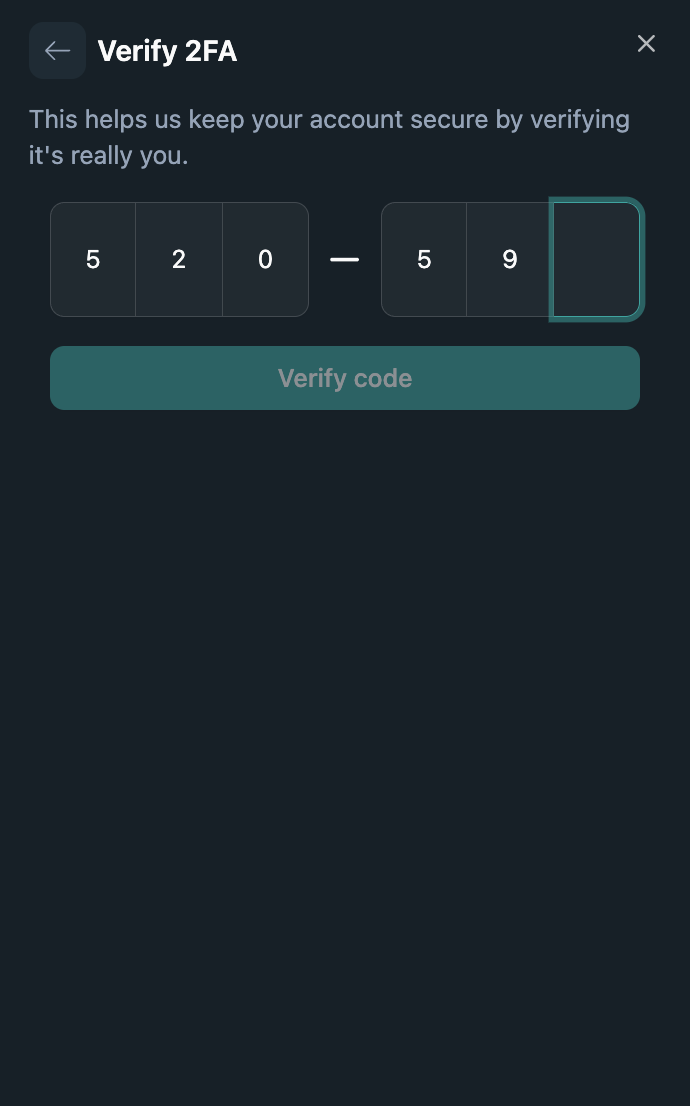
-
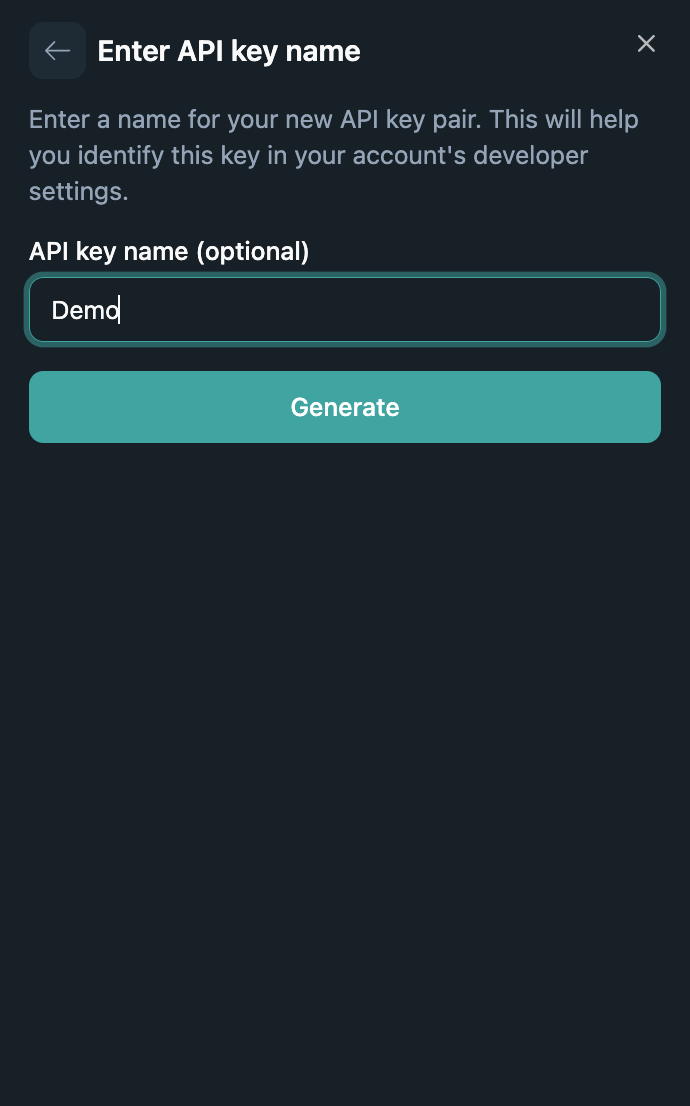
Provide a descriptive name, choose the account access and permissions the key needs, and confirm.
-
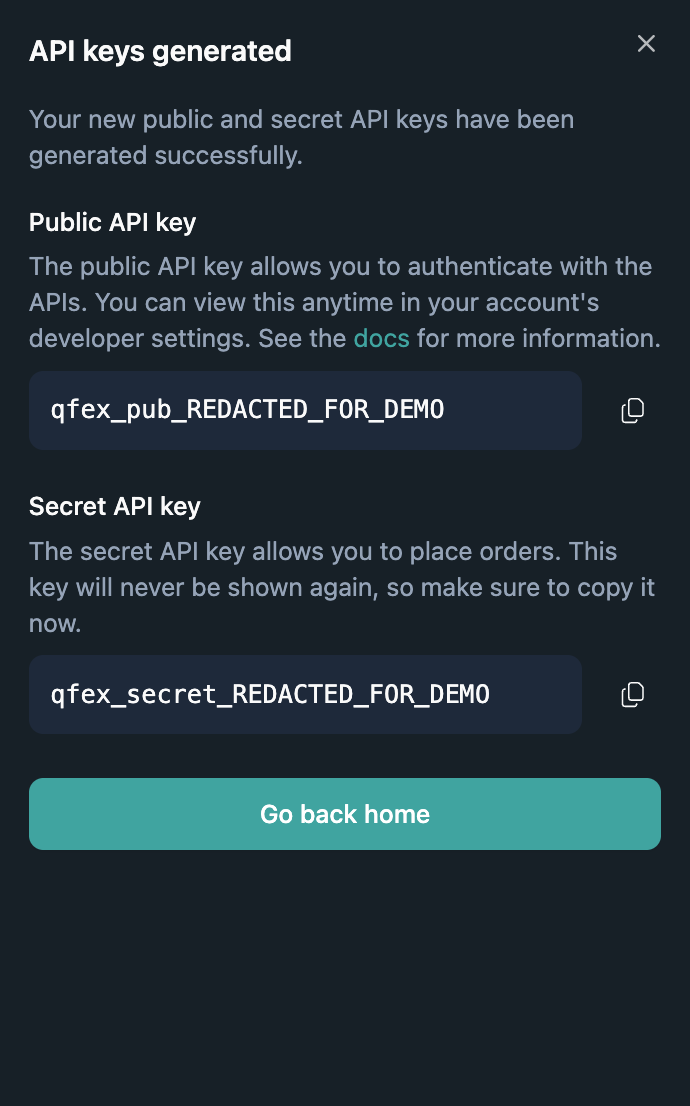
Copy the generated key and store it securely—it will only be shown once.
Account access and permissions
Each API key is limited by both its account access and its permissions. A request must satisfy both settings. For account access, choose either:- A specific account: The key can be used only with the selected primary account or subaccount.
- All accounts: The key can be used with any account you own. Use this only when the integration genuinely needs access across accounts.
Create keys with only the permissions required for their intended use. For example, reporting software may need view permissions but should not need order execution or withdrawal access.
Use an API key with a third party
If you authorize a trusted third-party application to access QFEX with an API key:- Create a dedicated key for that application. Do not reuse your personal integration key.
- Limit it to the required account and enable only the permissions the application needs.
- Provide the public and secret key through a secure channel. The application never needs your QFEX password or MFA codes.
- The application must keep the secret key on a secure server and use it to sign authenticated requests. It must never expose the secret in browser code, mobile applications, logs, URLs, or source control.
- Revoke the key from Developer Settings when the integration is no longer needed or if either credential may have been exposed.
Builder-issued API keys
Builder wallet registration lets an enabled builder create a user’s trading key after the user signs a wallet message. The builder authenticates the registration request with its own API key andregister_user permission.
The returned user key is restricted to the main account and grants trading, account reads, deposit-address reads, and crypto withdrawals to registered destinations. Its view_balance permission authorizes GET /address and GET /withdrawal-addresses. Registered-destination crypto withdrawals with POST /withdraw are enabled through builder key issuance and replacement; this access is not selectable in Developer Settings. It has deposit_withdraw disabled, so it cannot rotate deposit addresses, manage bank accounts, or withdraw USD. See programmatic funding for the requests.
The key is labelled builder- followed by the builder’s username. Creating another key for the same user and builder label replaces the previous key. Keys with labels starting with builder- or managed are excluded from the normal API-key listing.
Create an API key programmatically
Standard programmatic key creation uses a QFEX user session, not an existing API key. First authenticate with a wallet or another supported sign-in method, then complete MFA to obtain a recently elevated access token. Send the elevated token to the key-generation endpoint. Supply every permission explicitly so the key cannot gain permissions through a default-value change:accountId value must be one of:
*for all primary accounts and subaccounts owned by the user- The user’s primary account ID
- A subaccount ID owned by the user
accountId is *. QFEX forces that permission to false for a key restricted to one account.
Elevate a session with TOTP
API-key creation requires recent MFA verification. If the user has a verified authenticator-app factor, challenge and verify that factor before creating the key:access_token returned by the verification response for key creation. Obtain factorId from the signed-in user’s verified factors. The user must provide the current authenticator code; do not store or attempt to generate it for them.
HTTP request
The raw key-generation request is:public_key and secret_key. Persist the pair before discarding the response; the secret cannot be retrieved later.